Delivery in 2-3 working days

Turn Off the TV's Built-in Speakers
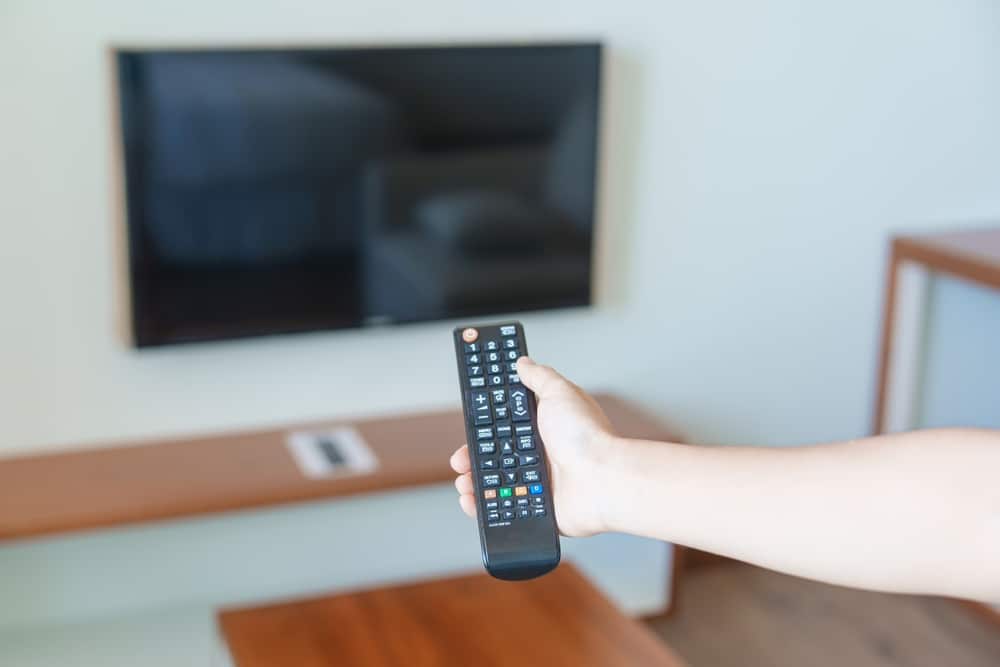
When you connect a soundbar, an amplifier, or an external TV speaker to your TV, you often want to hear the sound only from the new device and not from the TV as well. With many devices, the switch happens automatically. With others, both sources remain active. Then the sound comes across as hollow, duplicated, or echoey.
The setting for this can be found in the audio menu, though its name varies depending on the TV model. Sometimes it's missing, and sometimes the TV reverts to its built-in speakers the next time you turn it on.
Missing menu option
Some TVs do not offer a selection option. In that case, they turn off or switch channels automatically. If you then hear sound coming from two directions, you'll need to try a different method. The following are two standard methods that work on most devices.
Set the volume to zero instead of muting it
You can set the volume of the built-in speakers to zero as a test. It’s important not to use the mute button first. Depending on the TV, the mute button may only control the built-in speakers or may also affect external outputs. That’s why using the volume control is the better way to test this.
If you gradually turn the volume down while paying attention to the external device, you'll quickly notice a difference—or perhaps no difference at all. If the sound remains constant, the volume control is isolated.
Check the Accessibility Menu
On some TVs, there is a second setting hidden in the "Accessibility" or "Accessibility Features" section. There is often an option there for simultaneous output through the speakers and headphones. If this option is enabled, the built-in speakers will remain on, even if everything is set correctly in the sound menu.
Switch back to the internal speakers
A common pattern is that the switch works, but the setting is only retained until the next time the TV is turned on. After that, the sound comes back from the TV. This may be because the external audio device isn't recognized when the TV starts up, or because the TV doesn't permanently save the last selected output.
Possible causes
When it starts up, the TV searches for the last selected output device. If that device does not respond quickly enough—for example, because the soundbar is still booting up—the TV falls back on its internal speakers. From the TV’s perspective, this is the safer option, because without a response, there would otherwise be no sound at all.
Find a solution
One way to test this is to check the power-on sequence. Turn on the audio device first, then the TV. This way, the receiver is already active when the TV searches for an external output device. If both devices are plugged into the same power strip, it can be difficult to control this. Tip: Using separate power sources often solves the problem.
If the problem persists, resetting the connection often helps. To do this, unplug all devices from the power source for a few minutes. Afterward, turn on the audio device first, followed by the TV. For HDMI connections, it’s also recommended to turn off and then back on the device controls on both ends.
Double sound, echoes, and strange voices
If the sound comes from two sources, it often sounds hollow or echoes. Sometimes two voices can be heard simultaneously.
Time difference between two sources
External devices take time to process the signal. A soundbar decodes the signal, and a wireless speaker also transmits it. Meanwhile, the internal speakers are already ready to play. The delay is often only a few milliseconds, but it’s enough to make the sound seem muddled. That’s why it doesn’t help to just turn down the volume on the internal speakers. As long as they’re playing, the delay remains audible. They need to be turned off.
Audio Description as the Cause
If you also hear a voice describing scenes and actions, it’s not coming from the speakers. In that case, a second audio track is active—known as audio description. It’s part of the broadcaster’s accessibility features and can be turned off using the audio track button or in the menu under “Accessibility.”
It is often confused with the TV's text-to-speech feature, which reads out menu items. However, these are two separate functions that can be controlled in two different places in the menu.
Sound in Two Ways at Once
Sometimes you don't want the speakers to turn off. For example, if one person is listening through headphones and the other wants to continue hearing the normal audio output. There are various settings available for this.
Parallel Output in the Menu
Some TVs allow simultaneous audio output through the built-in speakers and a second output. This option is usually found in the sound menu right next to the output selection or under "Accessibility." If it's not there, it's not available, and unfortunately, it can't be added later.
Use two separate outputs
Another setup option involves using two separate outputs. For example, one device is connected to the HDMI return channel, and a second to the optical output or the 3.5 mm jack. Whether both outputs remain active simultaneously, however, depends on the TV. Some TVs allow this combination, while others disable individual outputs when the audio output is switched. The phase shift remains in this case.
Outlet in front of the TV
If the TV doesn't have a second output, you can also split the signal before it reaches the TV. An HDMI audio extractor is connected between the source device and the TV. It passes the video signal through and outputs the audio separately via a 3.5 mm jack, RCA, or Toslink. This works independently of the TV menu, but only for the audio from the connected source device. Regular TV programming via the tuner and apps running directly on the smart TV are not affected.
Frequently asked questions
The setting is located in the settings menu, not on the remote control. Under “Sound” or “Audio,” there is an option to select the output device; there, you can choose the connected device instead of the built-in speakers. If this option isn’t available, it helps to turn the volume all the way down. The mute button isn’t suitable for this, because on many devices it also mutes the output.
The soundbar is usually connected to the optical output. Only audio data—and no control signals—pass through this connection, which is why the TV does not recognize the connected device. You must then switch the input manually in the audio menu. With HDMI ARC, however, the devices recognize each other automatically.
The TV may not detect the selected output device quickly enough when it starts up, or it may not save the output setting permanently. A soundbar or amplifier sometimes takes a few seconds to power up. As a test, try this order: turn on the audio device first, then the TV. You should also check whether HDMI CEC or device control is enabled.
External devices take time to process the signal, but the built-in speakers do not. As a result, the same sound is heard twice, with a delay between them. Turning down the volume does not help, because the delay remains. The effect disappears only when the built-in speakers are turned off.
That depends on the TV. Some models offer simultaneous output through both the built-in speakers and external audio devices in the sound menu. With others, you have to choose between the TV speakers, HDMI ARC, optical output, Bluetooth, or headphones. Even when two outputs are running simultaneously, a slight time delay can occur, which is audible as an echo in the same room.