Delivery in 2-3 working days

HDMI ARC and eARC on the TV
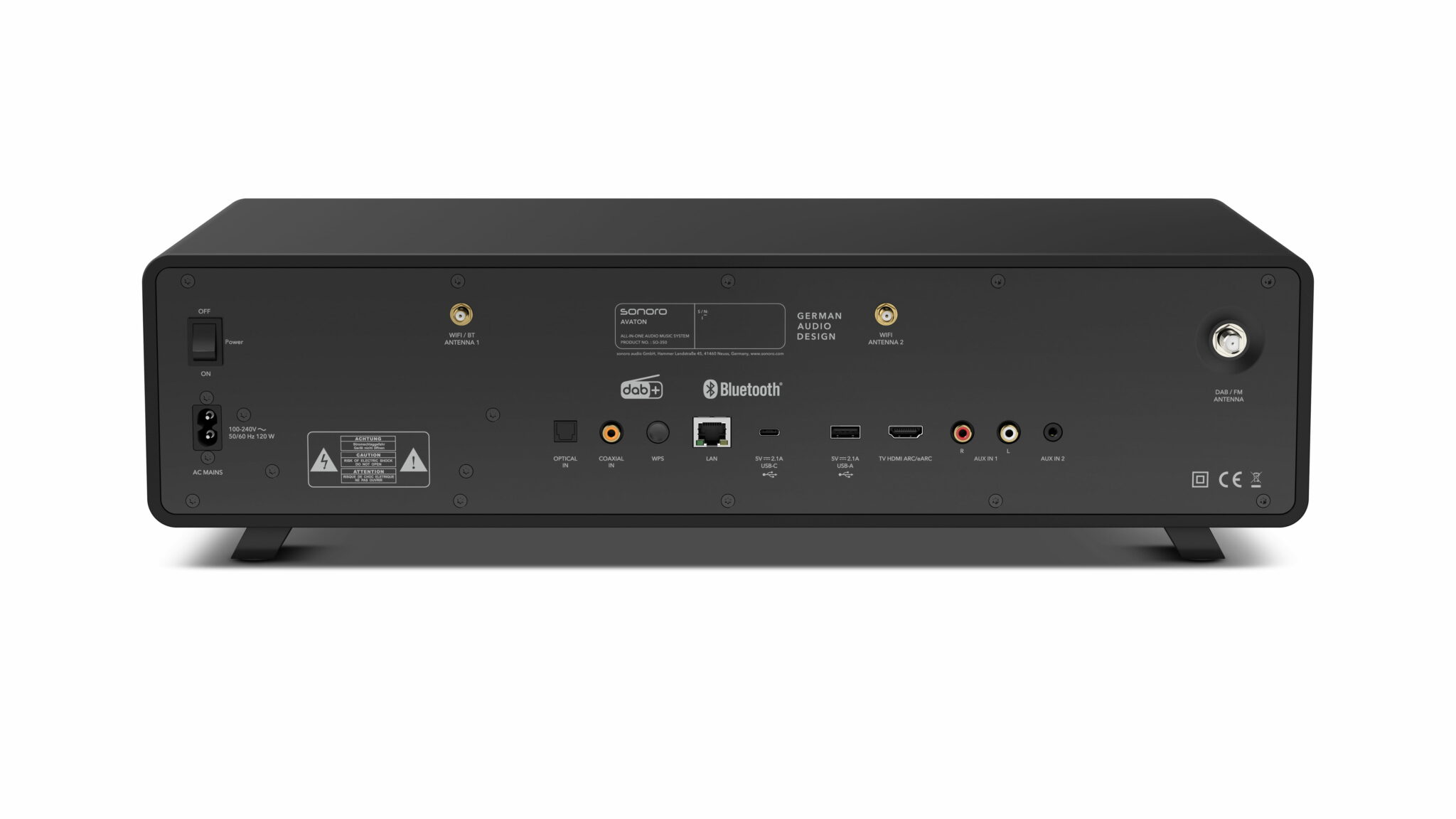
HDMI ARC sends the TV audio back through the same cable that transmits the video. If you have a soundbar or another amplifier connected to your TV, this saves you from having to use a second cable. For several years now, there has also been an enhanced version called eARC, which allows significantly more audio data to pass through.
Which audio formats are supported by the audio device depends on whether HDMI ARC or its enhanced version is being used. Both are located at a specifically labeled port and must be enabled in the audio menu. If there is no sound, the cause can usually be identified in just a few steps.
What is HDMI ARC?
The audio return channel solves a problem that arose with the first flat-screen TVs. Video and audio are fed into the device via HDMI, but the audio needs to be sent back out to a soundbar or amplifier. Previously, this required a second cable, usually an optical one. The return channel combines both directions into a single cable. The following paragraphs explain how this works and how to identify the correct connection.
The Return Channel Explained
ARC stands for Audio Return Channel. This feature uses the same HDMI cable in both directions. The video signal travels from the source device to the TV, and the audio signal travels from the TV back to the audio device. This eliminates the need for a separate optical cable. The return channel was introduced with HDMI 1.4. As a result, it is found on many TVs from recent years.
This is especially important for content generated by the TV itself. If you use a media library or streaming service through the device’s apps, there is no external playback device from which you could capture the audio. The audio must therefore come from the TV itself. That is exactly what the return channel is for.
How to Identify the Connection
Not every HDMI port on the TV (there are often several) supports the return channel. Usually, it’s just one. In addition to its number, it’s labeled ARC or eARC. On the audio device, the corresponding port is often labeled HDMI OUT with the same designation. If the cable is plugged into a standard input, only the video will be transmitted, and the audio won’t be returned.
On many devices, the label is located above the jack; on some devices, however, it may be printed in very small print next to the jack, or occasionally it may only be listed in the user manual. If you’re unsure, you can find this information in the TV’s technical specifications under “Connections.”
What's Different Compared to Fiber-Optic Cable
Before the return channel was introduced, the signal traveled from the TV to the audio device via the optical output. This method still works perfectly today and remains available on many devices. The optical output transmits stereo and compressed multichannel audio; however, it lacks the bandwidth required for high-resolution formats. In addition, the return channel allows you to control the volume of the audio device using the TV remote control. With the optical output, this usually requires a second remote control.
What Makes eARC Different
HDMI 2.1 introduced an enhanced version of the return audio channel. The “e” stands for “enhanced.” From the outside, the connector looks the same. Technically, however, HDMI eARC represents a significant leap forward compared to HDMI ARC. This advancement primarily concerns the amount of audio data that can be transmitted. Whether you’ll notice the difference in your own living room, however, depends on other factors.
Significantly more bandwidth
The original return channel was designed for compressed audio formats. This is sufficient for stereo and multichannel audio such as Dolby Digital or DTS. High-resolution audio tracks, on the other hand, do not come through completely. They are either downconverted or not transmitted at all.
eARC has its own data connection for audio and thus significantly more capacity. According to the HDMI Licensing Administrator, eARC transmits uncompressed signals with a sampling rate of up to 192 kHz and 24-bit resolution, as well as uncompressed 5.1 and 7.1 audio. Formats such as Dolby TrueHD, Dolby Atmos, DTS-HD Master Audio, and DTS:X are thus delivered in their entirety to the audio device.
eARC uses an enhanced data transmission protocol between the TV and the audio device. This provides more bandwidth, improved device detection, and features for synchronizing video and audio.
When the difference becomes noticeable
Those who mainly watch linear television will hardly notice a difference, since the broadcast signal is already compressed. With high-resolution audio tracks from Blu-ray or streaming services that offer them, however, eARC can transmit the full range of audio, resulting in a noticeable improvement.
However, bandwidth is only one of several factors affecting speech intelligibility. For example, a larger data stream does not automatically make dialogue clearer. Whether speech comes through clearly depends more on the sound mix, the speaker, and the room.
| Characteristic | ARC | eARC |
|---|---|---|
| Introduced with | HDMI 1.4 | HDMI 2.1 |
| Stereo and PCM | yes | yes |
| Dolby Digital, DTS | yes | yes |
| Dolby TrueHD, DTS-HD Master Audio | limited | yes |
| Uncompressed 5.1 and 7.1 | no | yes |
| Audio-Video Synchronization | Depends on the device; often done manually | improved, provided automatically |
| Recommended Cable | High Speed | Ultra High Speed |
ARC supports stereo and compressed multichannel audio and is sufficient for linear television. eARC is worth using if you want high-resolution audio tracks to reach your audio device without any changes.
Overview of the Pros and Cons
The following points support this view
- One cable for video and audio, less wiring
- The audio from the TV apps reaches the audio device directly
- The volume can still be adjusted using the TV remote control
- Found on many televisions from previous years
Arguments against this are
- Only one connection on the TV controls this function
- Both devices must communicate properly; otherwise, there will be no sound.
- eARC requires compatible devices and a newer cable
- The audio remains tied to a fixed device in the room
What cable is needed?
The return channel places certain demands on the cable, and these differ between the two variants. For ARC, the standard HDMI cable—which almost everyone has at home—is usually sufficient. With eARC, however, older cables often result in audio dropouts or a complete lack of sound. HDMI cable classes are certified and can be identified by their designation.
High Speed Is Enough for ARC
For a simple return channel, a High Speed cable is usually sufficient. These cables are included with many devices and have been widely used for years. It’s generally not worth replacing them as long as the connection remains stable.
Ultra High Speed for eARC
If you want to use eARC, it’s best to use an ultra-high-speed cable. Older cables may not be able to handle the higher data rates, which can result in audio dropouts or a complete loss of sound. Ultra-high-speed cables are generally backward compatible, so they also work with devices that only support the standard return channel.
When You Need a Longer Cable
Copper cables pose no problem for short distances in the living room. As the length increases, susceptibility to interference rises, and the broadband return channel is particularly sensitive to this. The HDMI specification does not specify a fixed upper limit. The quality and construction of the cable are the decisive factors. For ceiling installations or large rooms, there are optical HDMI cables that transmit the signal as light and remain more stable over long distances.
Set Up HDMI ARC
The connection itself is quick and easy; configuring the settings in the menu usually takes longer than plugging in the cable. Following this step-by-step guide will help you avoid common pitfalls. It’s more practical than you might think. If you follow these steps, you’ll notice right away if something isn’t right after each step, instead of ending up with a device that has no sound. The menu items may have different names depending on the manufacturer, but the logic behind them is the same everywhere.
1. Choose the Right Connection
On both devices, the cable should be plugged into the port labeled ARC or eARC. On the TV, this is an HDMI input; on the audio device, it is usually a dedicated HDMI output. If only one of the two devices supports eARC, the connection will automatically continue in standard mode.
2. Change the audio output
In the TV's sound menu, you must switch the output from the internal speakers to the external device. This menu option is usually found under "Sound" or "Audio Output." This is an important step. Without it, the sound will remain in the TV even though the cable is connected correctly.
3. Enable device control
The return channel works closely with the HDMI device control system, known as CEC. It ensures that the external device turns on at the same time as the TV and that the volume can be adjusted using the TV remote control. In the menu, this feature has a different name for almost every manufacturer, but it refers to the same thing everywhere. It must be enabled on both devices.
4. Check the result
After making the switch, the sound should come from the external device, and the internal speakers should remain muted. If sound is coming from both sources at the same time, the output setting in the menu is still set to "parallel output" and needs to be adjusted. A quick test with a program in which someone is speaking will show more quickly than music whether the connection is working properly and is in sync.
It's also a good idea to test with different sources. A media library accessed through the TV app and another connected external device may not necessarily behave the same way because they deliver different audio formats.
If there is no sound
The return channel doesn't always work right away. This is rarely due to a defect in the device. Four causes account for most cases. You can test them one by one. It makes sense to briefly check after each step to see if the sound has returned, rather than changing several things at once. If there is still no sound after each step, that already narrows down the search significantly.
1. The devices did not connect
When connecting the devices, they exchange various pieces of information with each other. If this synchronization process goes wrong, there will be no sound. If this happens, it often helps to unplug both devices from the power source for a few minutes and then turn on the TV first, followed by the audio device. It’s also worth firmly reseating the cable at both ends, as this is more often the source of the problem than you might think.
2. The audio format is incompatible
The TV outputs audio in a specific format, and the audio device must be able to handle it. If the output is in a multichannel format that the other device doesn't support, no sound will be heard. Switching to PCM usually helps in this situation, because this format is supported almost everywhere. The menu option is usually found under the advanced audio settings.
3. Players are connected to the wrong device
If a receiver, soundbar, or game console is connected directly to the TV, the TV must relay the audio. This doesn’t work with every format, and the audio is sometimes reduced to stereo when transmitted via the simple return channel. If you want the full audio track, it’s better to connect these devices directly to the amplifier and send the video signal to the TV from there.
If the audio and video are out of sync after switching, this is due to the processing time in the chain. eARC includes an automatic correction feature; with a standard return channel, the delay can be adjusted manually depending on the device. Turning the device off and back on often resolves this issue as well.
4. The device control is turned off
Some TVs only transmit audio through the return channel when device control via HDMI is active. This feature is sometimes accidentally disabled in the settings, for example, after a reset or an update.
If you still don't hear any sound after going through and testing steps 1–4, try using a different cable. Defective or worn-out cables are rarely immediately noticeable. They often cause sporadic dropouts that are difficult to trace to a specific cause.
Where the return channel Reaches Its Limits
Not every TV room can be conveniently wired using the return channel. Typically, there are three common scenarios in which another method is more suitable—or may even be the only option. In all three cases, the optical output remains the fastest alternative because it is available on most TVs and is sufficient for both stereo and compressed multichannel audio.
Older amplifiers without a digital input
Many well-preserved systems do not have an HDMI port. You can still use the audio, however, by connecting through the TV’s optical output and using a converter that converts the digital signal to an analog one. To do this, the TV usually needs to be set to a simple stereo format.
If you don't want the sound to carry throughout the entire room
The return channel is connected to a fixed device in the room. If you want to bring the sound closer to your seat or listen at a lower volume without disturbing others, this won't work. In that case, you'll need to use the optical output or the headphone jack to connect to a wireless speaker.
You can also combine the two. Connect a soundbar to the rear channel and a second device to the optical output. Both signals then run in parallel, though the difference in processing time may cause an audible delay between the devices.
If there is only one connection
Older or very basic TVs do not have a return channel, and often the only available connection is already occupied by another device. In that case, the optical output—which is found on most TVs and is sufficient for stereo as well as compressed multichannel audio—is the only option.
Frequently asked questions
HDMI ARC stands for Audio Return Channel. This feature sends audio from the TV back to a soundbar or amplifier via the same HDMI cable that carries the video signal. This eliminates the need for an additional optical cable. ARC has been a standard feature since HDMI 1.4 and can be found at a port on the TV that is specifically labeled for this purpose.
The difference lies in the bandwidth. ARC transmits compressed multichannel formats such as Dolby Digital or DTS. eARC has significantly more capacity and, according to HDMI Licensing Administrator, supports uncompressed signals at up to 192 kHz and 24 bits, as well as uncompressed 5.1 and 7.1. This adds formats such as Dolby TrueHD and DTS-HD Master Audio, which cannot be fully transmitted via ARC.
For ARC, a High-Speed cable is usually sufficient. For eARC, an Ultra-High-Speed cable is the safest choice, because the higher data rates can otherwise cause dropouts. Ultra-High-Speed cables are generally backward compatible and will also work with older devices.
It’s usually due to one of four reasons. The cable isn’t plugged into the ARC port, but into a standard HDMI input. The audio output setting in the TV menu is still set to the internal speakers. Or the selected audio format doesn’t match the connected device; in that case, switching to PCM often helps. Device control via HDMI must also be enabled on both devices.
Generally not. Portable TV audio amplifiers and wireless speakers typically use the TV’s optical output or headphone jack, not the audio return channel. If you plan to use such a device, check before purchasing to see which outputs the TV has and whether the optical output is still available.