
TV Has No Sound Anymore
The TV is running, the picture is there, but the sound is missing. Often, a simple restart or re-plugging the HDMI cable helps. If it remains silent, the cause is usually a setting or the connection to the attached audio device.
Therefore, before checking all cables and connections, you should first check the TV’s audio output. With a few simple steps, you can usually quickly narrow down why there is no sound.
The Quick Initial Check
There are four simple things you should check first, which together take less than five minutes. You don’t even need to go into the menu. If there’s still no sound from the TV afterward, the search continues in the sound settings.
Mute and Volume
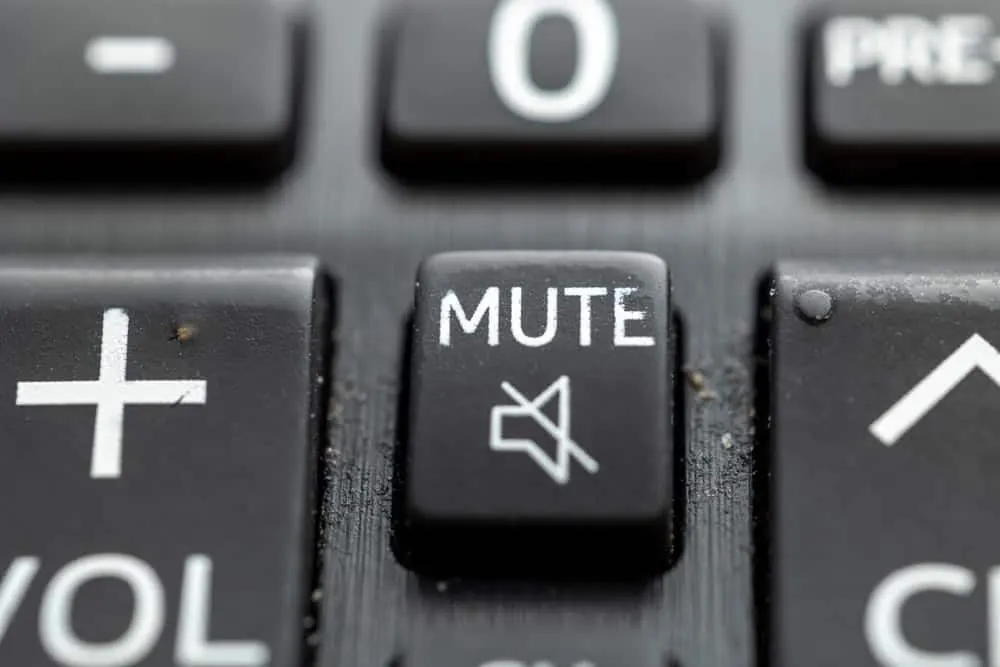
The mute function is the most common reason and also the most inconspicuous. On many remote controls, the button is located directly next to the volume rocker, and it’s easy to press it accidentally. The corresponding symbol only flashes briefly on the screen. Pressing the volume button briefly will immediately show if it was accidentally activated.
Mute and zero volume are not the same. On some TVs, the mute button only switches off the built-in speakers, while a connected soundbar continues to play. And if there’s a second remote control in the household, such as one for a receiver, it might also have muted the sound.
Cables and Plugs
This classic solution works more often than you might think. Unplug and re-plug the HDMI cable on both the TV and the playback device, then do the same for the optical cable or the jack plug, if either is in use. If a plug is not fully seated, it often still transmits video but no audio.
The port is important. For HDMI, the cable must be plugged into the port on the TV that is also selected as the input. If it’s plugged into an adjacent port, the picture will still play because the TV has automatically switched.
A Second Source for Comparison
The next step narrows down the cause more effectively than anything else. Simply switch to another channel and then to a completely different source, for example, from the antenna to an app on the TV or to a connected player.
If there is sound there, the TV is fine, and you should continue troubleshooting the first source or its cable. If it remains silent everywhere, the problem lies with the device itself or a setting that applies to everything. This one minute will save a lot of time later.
Restart and Power Disconnection
A restart may sound like a makeshift solution, but it surprisingly often helps with sound problems. Modern TVs are small computers, and the audio output can sometimes freeze after an update or channel change. The standby button is not enough; the device must be completely disconnected from power for about one minute.
On many devices, this can be done without the hassle of moving furniture. Hold down the power button on the TV itself for a few seconds, and a small menu with a restart option will appear.
Sound Only from One Source
Comparing with another source helps in many cases. If the sound is missing only from one source, the cause is not the TV. In that case, an external device or a channel with audio problems is the culprit.
Only the TV Program Remains Silent
If sound works with an app or a player but not with regular TV programming, first check the audio track, as many broadcasts are transmitted with multiple tracks simultaneously, and one of them might be empty or in a foreign language. This can appear as an audio outage. The selection is usually on a dedicated button on the remote control or in the menu under Sound and Language.
If it only affects a single channel, the issue is often resolved within a few minutes, as such disturbances originate from the broadcast and not the device. If a separate receiver is connected, the same applies to it as to the TV. It also has a volume control, a mute button, and an audio output setting.
Only a Connected Device Remains Silent
Game consoles, streaming sticks, and Blu-ray players come with their own audio settings. These occasionally change after an update. Their menus almost always include an option for audio output, where you can choose between stereo and multi-channel. If a format is selected that the TV does not process, no sound will be heard.
As a cross-check, try switching the port. If you plug the same device into a different HDMI input and it works, the problem is with the port itself, which can happen with older TVs.
Only Through the Soundbar Does It Remain Silent
Soundbars, amplifiers, and base stations come with their own pitfalls. For HDMI, not every port counts, but only the one labeled ARC or eARC. For optical cables, on the other hand, the set format is decisive.
Settings That Mute the Sound
If it remains silent across all sources, the solution is almost always in the TV’s sound menu. Three settings are responsible for this, and all three often change on their own in daily use. They can be found under Sound, Audio, or Speaker, depending on the device.
Audio Output is Set to Another Device
In the sound menu, you define where the audio should go. Options include the built-in speakers and anything else connected. If a device is selected here that is not currently running or is no longer connected, no sound will come from the TV, even if everything is technically fine.
This happens particularly easily after a software update or if another device was briefly connected. In such cases, the settings must be reverted to the TV output, and the problem will be resolved.
Headphones Are Still Connected
Bluetooth headphones remain paired with the TV, even if they are, for example, in a cabinet. If such headphones turn on automatically within range, they draw the sound to themselves, and the TV remains silent. A forgotten jack plug has a similar effect, as many TVs switch off the built-in speakers as soon as something is plugged in there.
The Digital Audio Format Does Not Match
On the optical output and via HDMI, you can set the format in which the audio leaves the TV. Options usually include PCM and passthrough of compressed multi-channel audio. If the connected device does not understand this format, you will either hear nothing at all or only static.
The following test sequence has proven useful:
- Set the audio output to the TV speakers and check if sound returns.
- Check the TV’s Bluetooth list to see if a device is shown as connected.
- Feel the jack port on the TV to see if a plug is still inserted.
- Try PCM for the output format; most devices understand this.
- Temporarily disable automatic sound optimization if the device offers such a feature.
Suspected Device Malfunction
If there is still no sound after all these steps, the situation becomes more serious. A genuine defect is rare but does occur. To rule out such a defect, there are two more things that should be done.
Update and Reset Audio Settings
Audio output errors are often resolved by a software update, as manufacturers address such problems with new versions. Where to find the update varies by device, but usually, it’s under System or Support. Without an internet connection, the file can be downloaded from the manufacturer’s website and installed via a USB stick.
If that doesn’t help, many TVs offer a reset that only affects the audio, leaving the picture and channel list untouched. This instantly clears all subsequently modified audio settings. Those who shy away from a complete factory reset will find this option beneficial.
Indications of a Genuine Defect
Evidence of a hardware error includes the absence of the TV’s menu sounds, such as the small clicks when navigating through settings. These come directly from the device and have nothing to do with sources, cables, or formats. If they are also missing, it points to an issue with the electronics.
A second indication is sound that is present but scratches, crackles, or cuts out. This suggests mechanical damage to the speakers rather than a setting issue.
Frequently Asked Questions
In most cases, it’s a minor issue. The mute button was pressed, a plug is loose, or the audio output in the menu is set to a device that is not currently running. A software update can also change settings without you noticing. A defect should only be considered if no source provides sound at all.
Picture and sound operate separately within the device, which is why one can function while the other does not. With an HDMI connection, both are transmitted via the same cable but processed separately. Therefore, a perfect picture does not indicate whether everything is fine with the sound. Comparing with a second source narrows this down in one minute.
This actually happens more often than many people think. If the plug is not fully seated in the port or a single wire in the cable is damaged, the connection may still be sufficient for video but not for audio. A different cable can clarify this in two minutes. However, a plug that has come loose slightly when moving furniture is more common than a cable break.
It resets all values in the sound menu to their factory defaults. This affects sound mode, output format, volume balance, and the choice of output device. The picture and channel list remain untouched, unlike a complete factory reset. This is particularly worthwhile if a lot of experimentation has occurred over time and no one remembers what has been changed. You will need to re-adjust your preferred sound settings afterward.
Within the legal warranty period, the retailer is responsible, and the question of costs does not even arise. Afterward, it depends on the device. For an older TV, the cost of repairing a defective amplifier board quickly exceeds its remaining value. An external speaker connected to the optical output or headphone jack is often the more economical solution in such cases, provided these connections still work.